Map (Quad Tile)
This page describes how to set up and configure the Map (Quad Tile) component in KX Dashboards. This component provides a geographic map visualization designed to work with quad-based tile services that use longitude/latitude coordinate systems.
Overview
The Map (Quad Tile) component introduces native support for CRS:84 Quad Maps. It enables KX Dashboards to consume quad-based tile services that use longitude/latitude ordering (CRS:84), rather than just Web Mercator. This allows accurate rendering of both global and regional datasets that are published in geographic coordinates.
CRS:84 quad maps are commonly used by WMTS and custom tile services where tiles are indexed using a quadtree scheme but expressed in EPSG:4326 (CRS:84 axis order: lon/lat) instead of EPSG:3857.
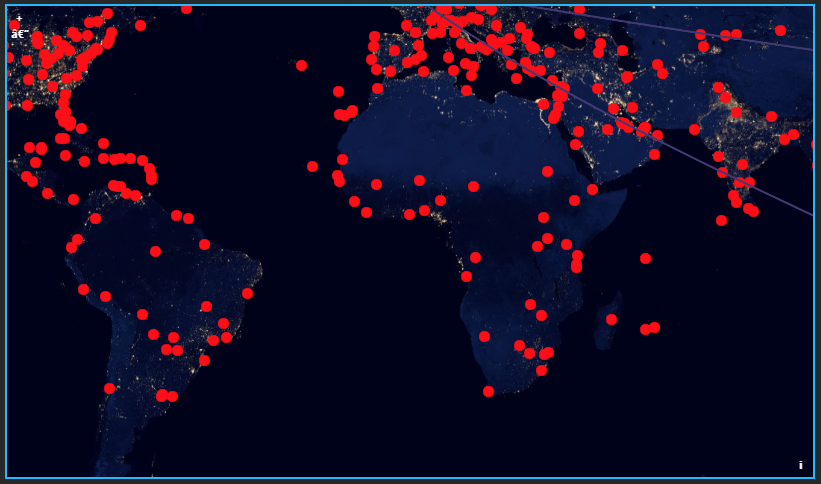
What is CRS:84?
CRS:84 is a geographic coordinate reference system equivalent to EPSG:4326 but with an explicit longitude, latitude axis order. Unlike EPSG:3857 (Web Mercator), CRS:84 preserves true geographic coordinates and avoids projection distortion at high latitudes.
Set up a Map (Quad Tile) component
To set up a Map (Quad Tile) component, click and drag the component into the workspace and define its properties as explained in the following sections
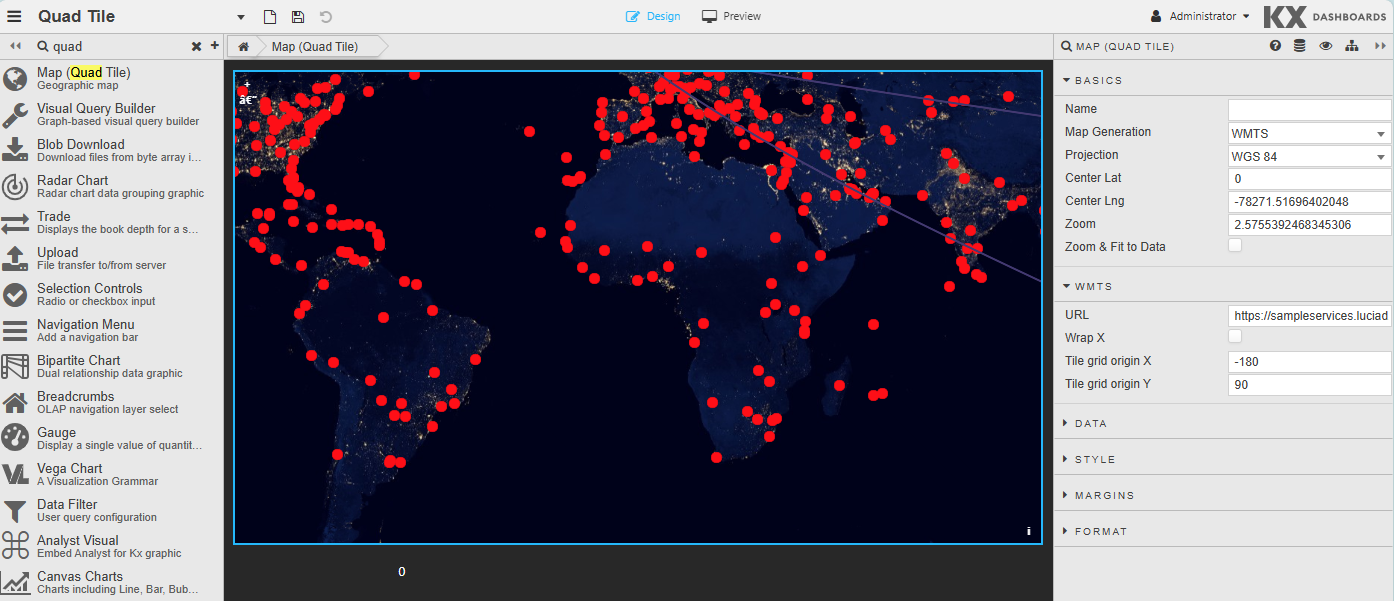
Map (Quad Tile) properties
The following sections provide details on how to configure the properties of the Map (Quad Tile) component.
Basics
Open the Basics tab on the right and configure the properties described in the following table.
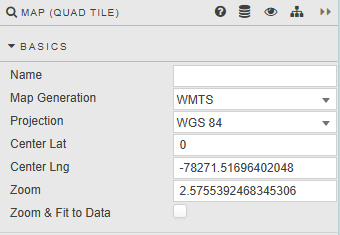
|
property |
description |
|---|---|
|
Name |
A user-defined name for the map component. This is used for identification within the dashboard configuration and does not affect rendering. |
|
Map Generation |
Specifies the map configuration type used to render the map. This determines how layers, projections, and tile sources are interpreted. Initially can only be set to WTMS. |
|
Projection |
Defines the coordinate reference system (CRS) used by the map. Initially can only be set to WGS 84. |
|
Center Lat |
The latitude value used to set the initial vertical center point of the map view. |
|
Center Lng |
The longitude value used to set the initial horizontal center point of the map view. |
|
Zoom |
Sets the initial zoom level of the map. Higher values zoom in closer to the map, while lower values show a wider geographic area. |
|
Zoom & Fit to Data |
When enabled, the map automatically adjusts its center and zoom level to fit the extent of the loaded data layers. This overrides the manual center and zoom settings on initial load. |
WMTS
Open the WMTS tab on the right and configure the properties described in the following table.
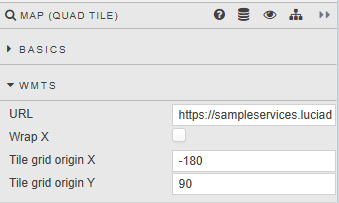
|
property |
Description |
|---|---|
|
URL |
The endpoint of the WMTS tile service. This URL is used to request map tiles based on the configured tile grid, projection, and zoom level. |
|
Wrap X |
Controls horizontal world wrapping. When enabled, the map repeats tiles horizontally beyond the -180 to 180 longitude range, allowing continuous panning across the international date line. |
|
Tile Grid X |
Defines the X origin of the tile grid, typically the top-left corner of the grid. |
|
Tile Grid Y |
Defines the Y origin of the tile grid, typically the top-left corner of the grid. |
Data layers
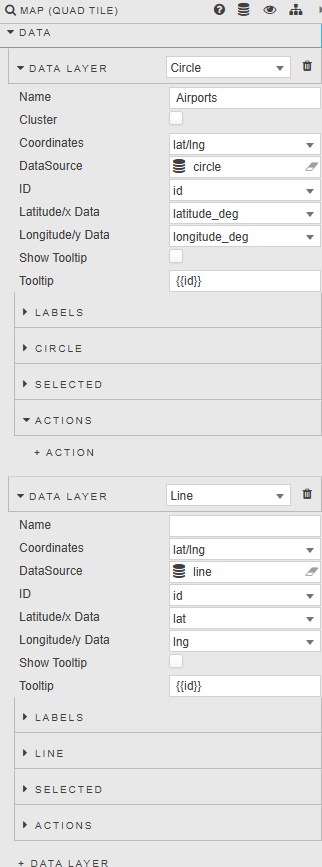
Data layers represent the visualization of data points or geometries on the map. Each data layer has a specific rendering type:
-
Circle: Renders data points as circles, commonly used for point-based datasets.
-
Line: Renders data as connected line segments, suitable for paths, routes, or trajectories.
-
Icon: Renders data points using custom icons or images.
Open the Data tab on the right to add a data layer and configure the properties described in the following tables.
Common properties
|
property |
description |
|---|---|
|
Name |
The display name of the data layer, used for identification and management within the map configuration. |
|
Coordinates |
Defines how coordinate data is interpreted for the layer, based on the selected projection and data source structure. |
|
Data source |
Specifies the underlying data source that provides the data for this layer (for example, a query or dataset). |
|
ID |
A unique identifier for each data item within the layer. This is used for selection, interaction, and actions. |
|
Latitude / X Data |
Specifies the data field that contains the latitude (or X coordinate, depending on projection) for each data point. |
|
Longitude / Y Data |
Specifies the data field that contains the longitude (or Y coordinate, depending on projection) for each data point. |
|
Show tooltip |
Enables or disables tooltips for the data layer. When enabled, tooltips appear when users hover over or select map features. |
|
Tooltip |
Defines the content displayed in the tooltip. This can include dynamic values derived from the data source. |
|
Selected |
Enables the user to select a data point and set to a viewstate. |
|
Actions |
Defines the actions that can be triggered when a data feature is interacted with. |
Circle specific properties
|
property |
description |
|---|---|
|
Radius |
Defines the size of each circle marker, typically specified in pixels. Larger values produce larger markers, making points more visually prominent. |
|
Fill Color |
Specifies the interior color of the circle marker. This can be a fixed color or data-driven, depending on configuration. |
|
Stroke Color |
Defines the color of the circle outline. This is useful for improving contrast against the underlying map or distinguishing overlapping points. |
|
Stroke Width |
Controls the thickness of the circle outline in pixels. A value of zero disables the stroke entirely. |
Line specific properties
|
property |
description |
|---|---|
|
Width |
Defines the thickness of the line in pixels. Wider lines are more visible and can be used to emphasize important paths. |
|
Color |
Specifies the color of the line. This can be static or data-driven to represent different categories or states. |
|
Simplify |
Enables or disables line simplification. When enabled, the geometry is simplified to improve rendering performance, especially for large or complex datasets. |
|
Tolerance |
Defines the simplification tolerance used when line simplification is enabled. Higher values result in more aggressive simplification, reducing visual detail in favor of performance. |
Icon specific properties
|
property |
description |
|---|---|
|
Image Src |
Specifies the source URL or reference for the icon image. This image is used to represent each data point on the map. |
|
Fill Color |
Applies a color overlay to the icon, if supported. This can be used to dynamically style monochrome icons based on data values. |
|
Opacity |
Controls the transparency of the icon, where 1 is fully opaque and 0 is fully transparent. |
|
Position |
Defines how the icon is anchored relative to its geographic coordinate. This controls how the icon aligns with its location on the map. |
Export
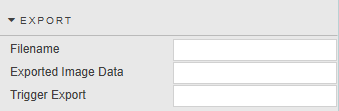
This allows you to export Quad Maps as PNG images.
Open the Export tab on the right and configure the properties described in the following table.
|
property |
description |
|---|---|
|
Filename |
Specifies the name of the PNG file that will be generated when the Quad Map is exported. |
|
Exported Image Data |
Stores the generated PNG image data after the export is triggered. |
|
Trigger Export |
Initiates the export process and generates the PNG image using the current Quad Map configuration and data. |
Annotations
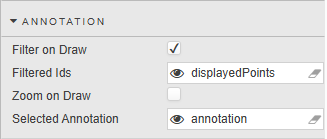
The Annotations feature in Quad Maps allows you to draw shapes on the map and interact with underlying data based on those shapes.
The properties described in the table below control how annotations behave when they are created, updated, or selected.
|
property |
description |
|---|---|
|
Filter on Draw |
When enabled, the map automatically applies a data filter as soon as an annotation is drawn or modified.
|
|
Filtered IDs |
Contains the list of data record IDs that fall within the currently drawn annotation.
|
|
Zoom on Draw |
When enabled, the map will automatically zoom and pan to fit the annotation when it is drawn.
|
|
Selected Annotation |
Represents the currently selected annotation on the map.
|
Style, Margins, Format
See Style for full details of common settings.