How to Configure Global Properties
This page describes the Global Properties available in KX Dashboards and how to configure them.
Global Properties define application-wide settings that apply across all dashboards, allowing you to enforce consistent behavior, formatting, and styling from a single location.
These properties are available to all users in Edit Mode. Changes are applied globally and persist across sessions.
Important
Changes made here affect all dashboards and users, so they should be configured with care.
Accessing Global Properties
Global Properties are only available when Edit Mode is active.
To open the Global Properties panel:
-
Click the Menu icon in the top toolbar.
-
Select Global Properties.
-
Choose the property you want to view or modify.
-
Edit the value as required.
-
Click Save to apply your changes.
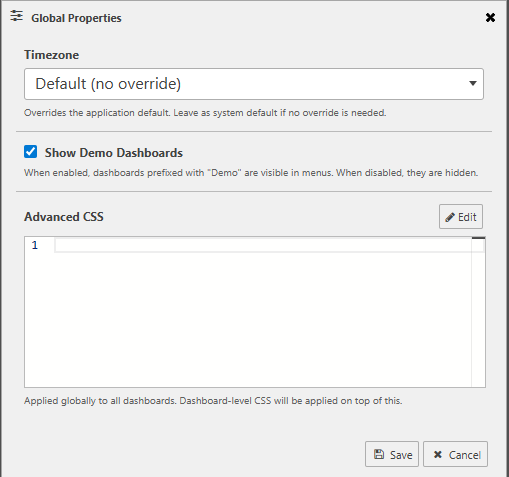
Available Properties
The following properties are available in the Global Properties panel:
-
Timezone. Defines a global timezone for the application.
When set, all date and time values across dashboards are displayed and processed using this timezone, rather than the user’s local system time. This ensures consistent time-based analysis across users and regions.
See Timezone for more details.
-
Advanced CSS. Allows you to define custom CSS rules that are applied across all dashboards from a centralized location.
This allows for consistent styling and branding without needing to configure individual components.
See Advanced CSS for more details.
-
Show/Hide Demos. Controls whether demo dashboards and sample content are visible to users.
-
Enabled: Demo content is visible to users.
-
Disabled: Demo content is hidden across the application.
-
Next steps
Learn more about managing themes: