Ingest Data from Parquet Files
This page demonstrates how to ingest Apache Parquet files into kdb Insights Enterprise using Pipelines in the Web Interface.
Parquet is an efficient data storage format. This tutorial demonstrates how to ingest data from Apache Parquet files stored in an AWA S3 bucket to the kdb Insights Enterprise database. The parquet files used in this tutorial are the New York City taxi ride data from February 2022. These files are provided by the NYC Taxi and Limousine Commission.
In cases where you wish to ingest your own data, stored in Parquet file format, you can use the pipeline created as part of this tutorial as a template.
This walkthrough guides you through the process to:
Create and deploy the database
Note
How to determine your database schema
If you are unsure about the data your Parquet files contain, you may need to query these files to investigate the available fields before defining your schema. To help with this analysis, use the available Parquet Reader q API.
-
On the Overview page, in the Quick Actions panel under Databases, choose Create New.
Note
A detailed walkthrough of how to create and deploy a database is available here.
-
Name the database
taxidb. -
Open the Schema Settings tab and click
 on the right-hand-side.
 -
Paste the following JSON schema into the code editor:
 Paste into the code editor
JSON
Copy[
{
"name": "taxitable",
"type": "partitioned",
"primaryKeys": [],
"prtnCol": "lpep_dropoff_datetime",
"sortColsDisk": [
"VendorID"
],
"sortColsMem": [
"VendorID"
],
"sortColsOrd": [
"VendorID"
],
"columns": [
{
"type": "int",
"attrDisk": "parted",
"attrOrd": "parted",
"name": "VendorID",
"attrMem": "",
"foreign": ""
},
{
"type": "timestamp",
"attrDisk": "",
"attrMem": "",
"attrOrd": "",
"name": "lpep_pickup_datetime",
"foreign": ""
},
{
"type": "timestamp",
"attrDisk": "",
"attrMem": "",
"attrOrd": "",
"name": "lpep_dropoff_datetime",
"foreign": ""
},
{
"type": "string",
"attrDisk": "",
"attrMem": "",
"attrOrd": "",
"name": "store_and_fwd_flag",
"foreign": ""
},
{
"type": "long",
"attrDisk": "",
"attrMem": "",
"attrOrd": "",
"name": "RatecodeID",
"foreign": ""
},
{
"type": "int",
"attrDisk": "",
"attrMem": "",
"attrOrd": "",
"name": "PULocationID",
"foreign": ""
},
{
"type": "int",
"attrDisk": "",
"attrMem": "",
"attrOrd": "",
"name": "DOLocationID",
"foreign": ""
},
{
"type": "long",
"attrDisk": "",
"attrMem": "",
"attrOrd": "",
"name": "passenger_count",
"foreign": ""
},
{
"type": "float",
"attrDisk": "",
"attrMem": "",
"attrOrd": "",
"name": "trip_distance",
"foreign": ""
},
{
"type": "float",
"attrDisk": "",
"attrMem": "",
"attrOrd": "",
"name": "fare_amount",
"foreign": ""
},
{
"type": "float",
"attrDisk": "",
"attrMem": "",
"attrOrd": "",
"name": "extra",
"foreign": ""
},
{
"type": "float",
"attrDisk": "",
"attrMem": "",
"attrOrd": "",
"name": "mta_tax",
"foreign": ""
},
{
"type": "float",
"attrDisk": "",
"attrMem": "",
"attrOrd": "",
"name": "tip_amount",
"foreign": ""
},
{
"type": "float",
"attrDisk": "",
"attrMem": "",
"attrOrd": "",
"name": "tolls_amount",
"foreign": ""
},
{
"type": "float",
"attrDisk": "",
"attrMem": "",
"attrOrd": "",
"name": "ehail_fee",
"foreign": ""
},
{
"type": "float",
"attrDisk": "",
"attrMem": "",
"attrOrd": "",
"name": "improvement_surcharge",
"foreign": ""
},
{
"type": "float",
"attrDisk": "",
"attrMem": "",
"attrOrd": "",
"name": "total_amount",
"foreign": ""
},
{
"type": "long",
"attrDisk": "",
"attrMem": "",
"attrOrd": "",
"name": "payment_type",
"foreign": ""
},
{
"type": "long",
"attrDisk": "",
"attrMem": "",
"attrOrd": "",
"name": "trip_type",
"foreign": ""
},
{
"type": "float",
"attrDisk": "",
"attrMem": "",
"attrOrd": "",
"name": "congestion_surcharge",
"foreign": ""
}
]
}
] -
Apply the JSON.
-
Save the database.
-
Deploy the database.
When the database status changes to Active, it is ready to use.
Create and deploy a Parquet reader pipeline
To create the pipeline:
-
Hover over Pipelines in the menu on the left pane and click the + symbol to add a pipeline.
-
Name this pipeline
taxipipeline -
To add a Parquet reader node:
-
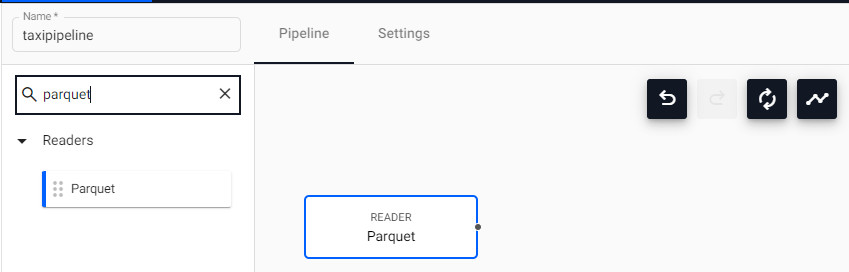
Type
parquetin the search box -
Drag and drop the Parquet node into the pipeline pane.
The screen updates as illustrated:
-
-
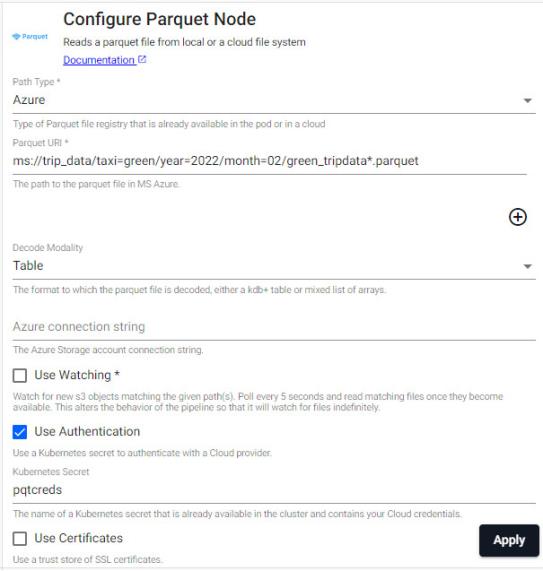
Click on Parquet node in the pipeline pane to open the Configure Parquet Node screen where you can input the values described in the following table.
variable
value
details
Version
2Select from dropdown
Path Type
AWS S3Select from dropdown
Parquet URl
s3://kxs-prd-cxt-twg-roinsightsdemo/green_tripdata_2024-02.parquetDecode Modality
TableThe format to which the parquet file is decoded, select from dropdown
Region
eu-west-1The format to which the parquet files is decoded, select from dropdown
Use Meta
NoUse Watching
NoWatch for new storage bucket objects. This is unchecked here as the pipeline is intended to pick up a fixed set of parquet files
-
To add a Database Writer node to the pipeline:
-
Type
writersin the search box. -
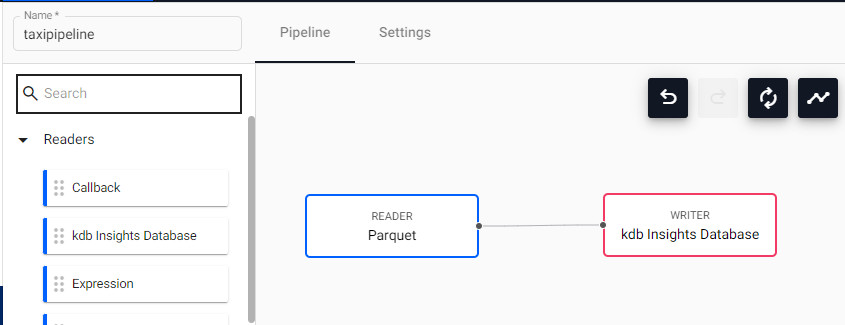
Drag and drop the kdb Insights Database node into the pipeline pane.
-
Connect the parquet reader node to the database writer node by clicking and drag the dot that represents the data output terminal on the Parquet node to the dot that represents the data input terminal on the kdb Insights Database node.
You screen updates as illustrated:
-
-
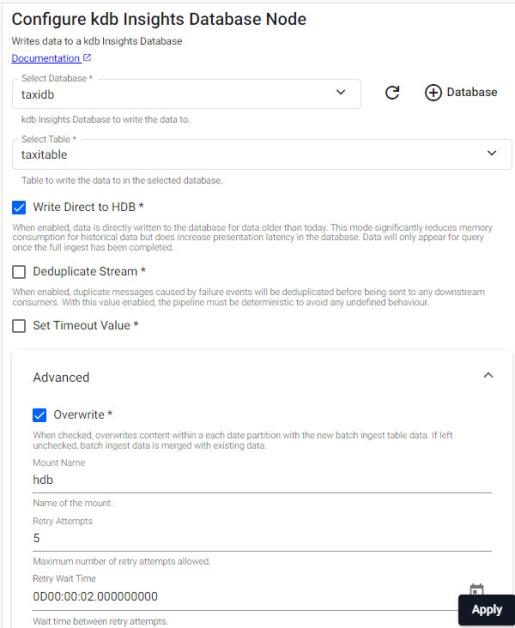
Configure the Database Writer to point to the database and table created previously. Use the variables described in the following table to complete the Configure kdb Insights Database Node screen.
variable
value
details
Database
taxidbThe kdb Insights Database to write the data to.
Table
taxitableThe table to write the data to in the selected database.
Write Direct to HDB
YesWhen enabled, data is directly written to the database.
Deduplicate Stream
NoData is deduplicated. Useful if running multiple publishers that are generating the same data.
Set Timeout Valuable
NoOverwrite
YesOverwrites content within a each date partition with the new batch ingest table data.
Information
Refer to the kdb Insights Database writer for more details on configuration of this node.
-
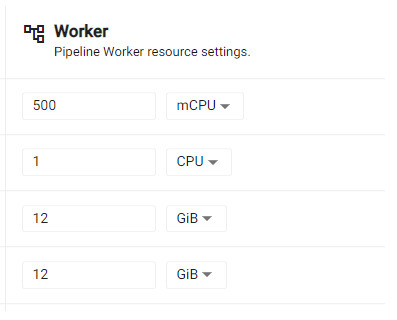
Configure the pipeline memory. You must allocate sufficient memory to your pipeline to ensure it can ingest the parquet files.
Information
Parquet files can have varying levels of compression. When the file is read by the pipeline, the data held in memory is uncompressed. The level of compression determines the memory allocation required. If you're unsure of the memory required, allocate an amount that is 8 times the size of the largest parquet file you plan to ingest.
-
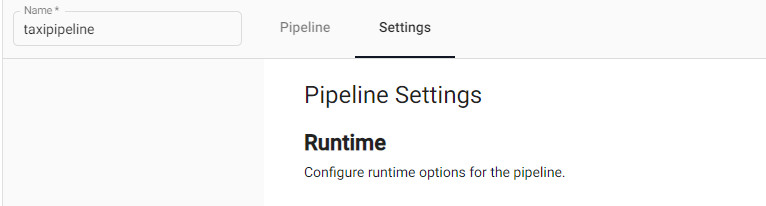
Click the Pipeline Settings tab.
-
Scroll down to locate the memory settings and set the values as shown below:
-
-
Start the pipeline by clicking Save & Deploy
-
The pipeline can be torn down once all the parquet files are processed.
Query the data
-
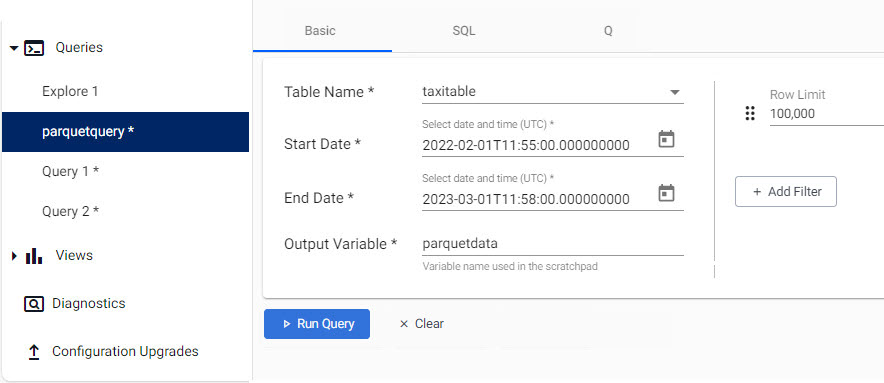
Create a new Query window.
-
Adjust the time range to any date-time range in February 2022, and click Get Data.
-
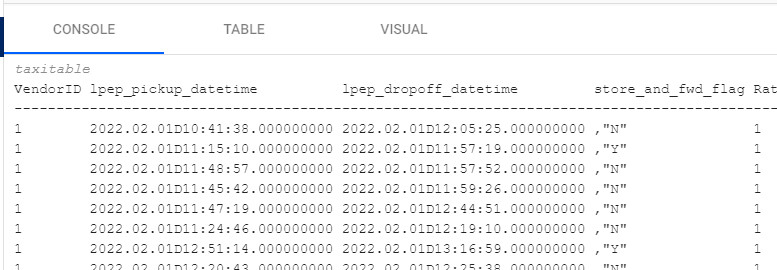
Data is displayed in the console as shown below.
The steps above show how easy it is to populate a database with a fixed set of parquet files using a Parquet Reader node.
Ingestion of parquet files as they are delivered
You can use wildcards to facilitate ingestion of parquet files as they are delivered to an object store bucket. One use case for this would be to ingest the data files from the previous day once they are copied into the bucket at a particular time each morning..
-
On your Parquet Reader node:
-
Update the URL to include wildcards. Using a * in the URL will match any string in a directory or file name. Glob patterns provide a way to specify a path that can match one or more files.
-
Turn on the Watching feature to ensure new files that match the file pattern are ingested as they are delivered to the bucket.
-
-
On yourDatabase Writer node, turn off Write Direct to HDB as this option is not supported when using the File Watcher.
Further reading
-
Web interface overview explaining the functionality of the web interface
-
Create & manage databases to store data
-
Create & manage pipelines to ingest data
-
Create & manage queries to interrogate data
-
Create & manage views to visualize data